
Product status: Client Evidence is in internal certification. Some automation described below is being completed and verified before beta. A configuration marked saved is not proof that the workflow or source capture has passed. This guide does not announce public Marketplace availability.
This guide is for ScaleSafe Client Evidence. For enrollment, checkout and payment collection, use the ScaleSafe — Enrollments guide.
Contents
- Installation and access
- What is available now
- Customers, offers and engagements
- Set up an offer
- SaaS and product recipe
- Services and coaching recipe
- Multiple purchases and payment history
- Connect source records
- Coverage and original files
- Read a preserved PDF
- Check a transcript quotation
- Prepare a dispute response
- Review and export
- Reconnect and troubleshoot
- Walk through your test account
Installation and access
Client Evidence uses its own HighLevel Marketplace application, separate from the enrollment product. During certification, ScaleSafe arranges installation in the agreed test sub-account. Public beta access begins after the release gates and Marketplace review are complete.
Use the intended HighLevel login and sub-account. Open ScaleSafe Client Evidence in that sub-account. Its navigation contains Dashboard, Customers, Service Profiles, Evidence Connections, Disputes and Settings. Access is tied to that installation; selecting a similarly named sub-account does not transfer its records or connections.
If HighLevel shows the app but its connection is incomplete, retain the sub-account and report the connection error to ScaleSafe. A visible menu item alone does not prove that authorization finished. Do not repeatedly install in different accounts to bypass an error.
After installation and connection confirmation, open the app inside the selected sub-account. A completed connection loads Workspace overview, with customer, preserved-original, dispute and capture counts. A new workspace can have zero records. A connection warning or access-pending screen means setup still needs attention; it is not the completed dashboard.
What is available now
The certification account has demonstrated customer workspaces, separate purchases, capture of HighLevel form submission PDFs and uploaded PDF originals, Zoom text transcripts, reason-specific response preparation, exact-version review and exports. Stripe test-mode certification has also demonstrated dispute notices, exact charge matching and an acknowledged reviewed response.
Two fresh HighLevel setup-plus-SaaS test purchases by the same customer automatically produced separate engagements, preserved distinct setup and recurring amounts, and matched their exact Stripe charges. The overlapping subscriptions stayed separate. This verified route uses one recurring product with one setup component and one software component, paid in full without billing adjustments. It does not certify every bundle, discount, tax or partial-payment variant.
Two fictional signed contracts have also been captured as separate original PDFs, read as page-numbered text and included in reviewed response exports. The contracts stayed with their own engagements. This tested the app’s capture workers using real HighLevel workflow links; it did not complete the native workflow-builder journey.
Public Marketplace approval and complete merchant self-service setup remain pending. The three native workflow actions are privately published, but installation, actual workflow execution and overlapping delivery routes are still being verified. Broader adjusted or partial billing journeys also remain under certification. Do not treat publication or a working capture worker as proof of unattended merchant setup.
Stripe test success does not activate a merchant’s live account. Direct detection and submission require the correct account, mode and permissions. Continue monitoring the processor’s own notices and deadlines. Client Evidence does not submit a response automatically: the merchant reviews the exact version first.
Customers, offers and engagements
An offer describes what you sell, how it is billed, its components and the proof you expect to collect. An engagement is one particular purchase of that offer by a customer.
The structure is customer → engagement → components, payments and evidence. One customer may have multiple offers or two simultaneous purchases of the same offer. A contact email, product name, tag or shared calendar cannot identify which purchase an individual record belongs to.
Offer descriptions are merchant-provided context. They do not establish that the customer accepted terms, received a service or received a refund. Those facts require supporting originals.
Set up an offer
The setup flow being certified has five steps:
- Define the offer. Describe its scope, billing arrangement, components and exclusions. Define required milestones and the actual record that demonstrates each one. Receiving a document, merchant review and customer acceptance are different completion conditions.
- Choose the selling source. Identify each engagement through a specific contract or opportunity, subscription, or product order. Select the correct payment environment. Never treat coaching installments as separate software subscriptions.
- Choose evidence sources. Select the forms, document templates, calendars and connected tools used for the offer. Map each source to its relevant service component and purpose.
- Configure tracking workflows. Preserve the engagement reference from the originating sale and carry it into later record-attachment and milestone steps. Native Marketplace tracking actions are privately published and still require actual execution verification; use only the recipe verified with ScaleSafe for your account.
- Verify the setup. Use two fictional purchases by the same customer, including overlapping purchases of the same offer. Confirm that the original records reach their correct engagement. Saved settings alone cannot mark the test passed.
The proposed HighLevel custom-object mirror is still pending certification. The Client Evidence engagement reference remains authoritative. Object capacity limits must never lead to deleting unrelated merchant objects.
SaaS and product recipe
For SaaS, the intended verified route is mapped product/price → specific subscription → engagement → renewal payments and relevant activity. A sales pipeline is not inherently required. For a one-time product purchase, the specific order identifies the purchase.
Setup work and software access need separate components, even when they are sold together. A later renewal must not be represented as another setup purchase. Access logs do not prove completion of a coaching session or project deliverable.
If an order contains several offers, or one charge covers several engagements, preserve the billing details needed to allocate it. Automatic handling of every bundle and partial-payment route is not yet certified. An unresolved payment remains visible until its exact relationships are established.
Services and coaching recipe
Use one specific completed contract or won opportunity for each engagement. Its originating workflow needs to preserve the engagement reference and attach the exact invoices, contracts and delivery records produced for it.
A coaching contract paid in six installments remains one engagement with six payments. Payment frequency does not change the nature of the service. A won opportunity is not proof of payment, and a sent contract is not proof of acceptance.
For an invoice created from an opportunity, verify that both identifiers survive the actual HighLevel workflow. If the available event or API does not supply that relationship, the route remains unverified. Timing, amount or the newest opportunity cannot substitute for the missing identity.
Multiple purchases and payment history
Open the customer record to see its distinct purchases. Each engagement retains the offer version used when it was created. Editing the offer must not rewrite the promise recorded for an earlier purchase.
A payment covering multiple engagements needs explicit allocations whose amounts equal the complete charge. Component and service-period review belongs to each allocation. A partial dispute does not automatically determine which allocation the claim concerns.
The disputed charge remains prominent in the response. Earlier payments can appear as supporting history when relevant to the reason. That history is not a declaration that a transaction meets a card network’s special evidence rules.
Connect source records
HighLevel: Supported reads cover contacts, communications, appointments, notes, tasks, forms, agreements, orders, invoices and subscriptions. Available records depend on permissions and the provider response. A contact can be tracked while a particular purchase association remains unresolved.
Stripe: Connect the same Stripe account that processes the HighLevel charges. A connection must have the capabilities needed for dispute detection or submission. CLI developer access is not a substitute for the merchant app’s permissions. Where direct access is unavailable, record the notice manually and use the reviewed export.
Zoom: Use the authorized Zoom connection and exact meeting occurrence and participant bindings. Available attendance and text transcripts can be retained. Transcript capture requires an existing provider transcript; Client Evidence does not generate Zoom transcripts or download meeting video by default. Search considers the preserved text, including complaints and contrary statements. Review the surrounding dialogue and speaker attribution before attaching a passage.
Software and external tools: The authenticated evidence API and configured bindings can supply entitlement, activity, delivery and document records. The source must identify the correct account, customer and engagement. Dedicated integrations are limited to those actually available in Evidence Connections.
Manual originals: Upload an authorized original when automated capture is unavailable. Manual capture is a visible alternative for gaps, not a claim that a source was captured automatically.
Coverage and original files
The coverage register contains 79 record types. Review applicability, availability, history, ownership, capture frequency and the manual alternative for each relevant source. Do not mark all items verified because a provider is connected.
Distinguish these states:
- Configuration saved: the source or rule has been selected.
- Record observed: metadata or an event has been preserved.
- Original preserved: the file bytes and their integrity hash are available.
- Association verified: the record belongs to the specific engagement or charge.
- Coverage verified: the required proof has been checked for the intended process.
Supported same-sub-account HighLevel file references are queued separately from their metadata. Other file hosts, unavailable permissions, unsupported formats and missing provider downloads remain gaps. Seeing a contract title does not mean the signed PDF or signing audit has been archived.
HighLevel signed contracts
HighLevel’s public API supplies document metadata, but not the completed signed PDF. Its Documents & Contracts → Completed workflow supplies Document PDF Link and Document URL. Client Evidence can use that pair to preserve the signed PDF and its included signing certificate after verifying the account, contact, document and current revision.
The workflow recipe is still under native certification. It will map those two fields once and retain the engagement reference for later steps. A queued capture means the event was received; Original preserved means the bytes were actually downloaded and checked. No routine manual download is part of this intended route.
Capture must happen for each completed revision. Testing showed that an old PDF link can later return the revised contract. Client Evidence refuses a mismatched revision; it never files today’s file as yesterday’s original. A missed older completion can therefore remain a visible gap even when the current contract is available.
The contract capture panel distinguishes a missing completion event, pending download, stale revision and missing historical original. A valid retained event can recover its missing capture job automatically. Retrying cannot reconstruct an older original that HighLevel no longer provides.
HighLevel forms and uploaded documents
To preserve a readable submission PDF, enable Generate Submission Document in the HighLevel form’s settings before a new submission. HighLevel applies that setting to new submissions; it does not create PDFs for earlier submissions. Client Evidence captures the generated PDF when HighLevel supplies its supported download reference.
Files submitted through a supported HighLevel file-upload field are separate originals. The generated submission PDF and the uploaded document can both appear in Customers → customer → Evidence. Open Original, then Download verified original, to inspect the actual file. Capture preserves the file’s hash, source identity and capture time. Current file capture is bounded to supported formats and a 10 MB file limit; an inaccessible or unsupported file remains a visible gap.
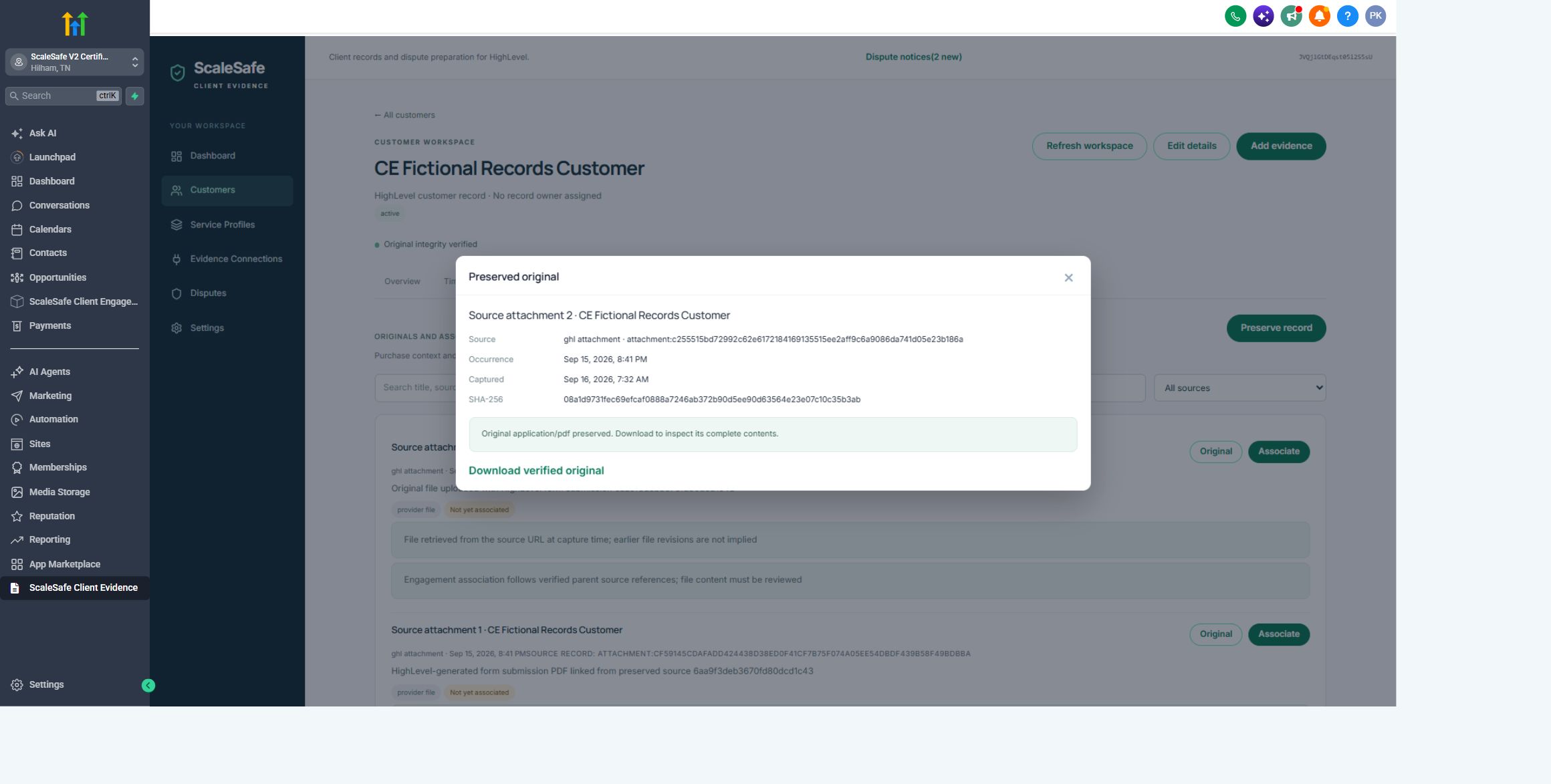
Actual certification account, fictional customer. The uploaded file is preserved but remains unassociated until an exact engagement relationship is available. A form PDF or upload alone does not prove a signature, accepted terms or completed delivery.
When a customer has multiple purchases, a shared form is not enough to select one. The originating process must carry a verified engagement reference. Client Evidence retains ambiguous records with the customer instead of assigning them to the newest purchase.
Capture health shows historical imports, checkpoints, retries and blocked sources. Refresh after resolving permissions or missing relationships. Changed originals retain distinct versions; response snapshots do not silently change with them.
Original files are kept in private file storage, with small records, hashes and associations in the database. Current controlled-beta limits are 10 MiB per file and 100 MiB of original bytes per merchant. Full storage is a visible capture problem. Retrying does not raise the limit or delete earlier evidence; ScaleSafe must resolve capacity before capture resumes. A rejected upload that was never accepted still needs its sending system to retry it.
Read a preserved PDF
Open a preserved PDF in the customer or dispute evidence view and inspect its extracted page text alongside the original. Page references identify where the text came from. The original file and its hash stay unchanged.
Reading happens separately from downloading. A preserved PDF may still show reading pending, failed or partial. Use Retry reading when offered after the problem is resolved. Image-only, encrypted or damaged PDFs may have no readable text; text extraction does not perform OCR or verify a signature. Partial text is labeled and must not be treated as the whole document.
Response citations retain the original file identity and page reference. Reviewing extracted text does not approve or change an already reviewed dispute response.
Check a transcript quotation
- Open the relevant customer’s preserved Zoom transcript and search its text. Confirm the exact meeting occurrence and engagement.
- Read the surrounding dialogue, including contrary statements. Speaker labels and transcription can be inaccurate; attendance does not establish who said a sentence.
- Select one continuous passage with its timestamps. Keep the wording intact and check its relevance to the disputed charge and service period.
- Prepare a new response containing the reviewed excerpt. An earlier reviewed response stays unchanged. Open the exported evidence pages and verify that the passage is readable and traces back to its preserved original.
Quotation checks establish that text occurs in the scoped source; they do not establish that the speaker’s statement is true or that a proposed interpretation is justified. Source-cited AI remains disabled until separately configured and approved. Structured preparation and manual review remain available.
Prepare a dispute response
Confirm the provider notice, raw reason, exact charge, disputed amount and actual response deadline. Unknown, broad or conflicting reasons require assessment. The app must not silently turn them into a non-delivery claim.
Preparation follows reason → charge and allocations → offer context → relevant originals → missing or conflicting facts → response. Consider authorization, non-delivery, quality, cancellation, refund and duplicate-processing disputes on their own facts.
Automatic draft preparation and source-cited AI analysis are in internal certification. AI is disabled until separate credentials and an approved usage budget are configured. The structured fallback remains available. AI observations require review even when their quotations match a preserved original. Offer descriptions, attendance or software access cannot become unsupported claims about unrelated delivery.
Refreshing preparation creates a new draft. A reviewed version retains its original content and digest.
Review and export
Review the exact narrative, charge allocations, periods, original exhibits, contrary records and coverage warnings. Inspect the original source, not only its title or summary. Confirm the requested resolution against the provider claim.
Approve that exact response version before exporting. The private record includes the reviewed snapshot and original files. The submission export includes supported visible evidence and instructions; review any conversion or size limitation before uploading it.
For manual submission, open the dispute in the processor’s dashboard, follow the packet instructions, place the response and files in the appropriate fields, and retain the provider confirmation. Exporting a file does not mark the dispute submitted. NMI merchants currently use a manually recorded notice and reviewed export.
Where direct Stripe submission is enabled, it still requires review of the exact response and provider acknowledgment. An uncertain or timed-out submission must be reconciled before retrying.
Reconnect and troubleshoot
App opens but says connection incomplete: Confirm the intended sub-account. Ask ScaleSafe to inspect the installation and callback before repeating installation attempts.
Customer captured, purchase unresolved: Check the product/price mapping, contract or subscription identity, payment mode and originating workflow. Do not select the latest purchase merely to remove the warning.
Document visible, original missing: Inspect the contract capture panel and capture health. Check whether the completion event arrived and whether its exact revision is still available. A title or Completed status does not mean the original is preserved. Report a missing event or historical revision to ScaleSafe; retrying the current link cannot recover earlier bytes.
Original preserved, text unavailable: Check the separate reading status. Image-only pages need another reading method; a failed download and a PDF without readable text are different problems.
Storage limit reached: Keep the existing evidence and contact ScaleSafe to resolve capacity. When available, review the retained record before retrying. An event received after an unaccepted upload must be resent by its source.
Transcript missing: Verify account, occurrence, participant binding, capture selection, provider transcript availability and permissions. An OAuth connection does not prove a transcript exists.
Wrong or missing service period: Review the billing document and the particular allocation. Do not assign a renewal period to unrelated setup work. Existing reviewed responses remain unchanged after correction.
Permission expired: Reconnect the affected source in the same sub-account and retry its capture. Keep account identities consistent. Uninstalling pauses access; it is not a repair for an unresolved purchase relationship.
Response needs review: Read the actual missing or conflicting facts. More records do not necessarily answer the dispute reason. Use the provider deadline and retain your submission acknowledgment.
For help, use ScaleSafe support and identify Client Evidence, the affected sub-account, approximate time, source type and error. Do not send credentials or card data.
Read the product-specific Client Evidence privacy policy and terms.
Walk through your test account
Use fictional records and the agreed test payment environment. Run this walkthrough with ScaleSafe after the relevant route has passed certification.
- Open Client Evidence from the intended HighLevel sub-account. Confirm the dashboard and account identity.
- Open Service Profiles, select an offer and inspect its billing components, selling source, delivery sources and verification status.
- Follow that offer’s selling process in HighLevel. Return to Customers and confirm that the customer and engagement appear automatically. A second sale must produce a distinct engagement; a renewal must remain with its subscription.
- Open the payment history. Check the exact charge, allocated amounts and service periods. Setup work and recurring software access must remain separate.
- Complete the configured delivery steps. In Evidence, inspect actual originals and their engagement associations. A missing original or unresolved relationship must stay visible.
- Record a fictional dispute or use the agreed provider test notice. Confirm the charge, reason and response deadline; inspect relevant prior payments and exclude unrelated purchases.
- Review the draft and original exhibits, approve that exact version, and prepare the export. Read its submission instructions and verify that exporting alone does not mark it submitted.
For a failed step, record the product, sub-account, time and visible error. Do not compensate by creating a purchase or filing its evidence manually when evaluating the automatic journey; report that route as incomplete.